PasteGuard icon

PasteGuard · Safe paste for AI

Paste into AI.
Keep the secrets.

Copy as usual. PasteGuard masks emails, API keys and card numbers on the clipboard right after you copy, so the secrets you'd paste by accident turn into masks. Auto-mask needs no Accessibility permission. See what it doesn't catch.

1Copy a message with secrets in it

Works wherever you paste

AI chats and agents
  • ChatGPT
  • Claude
  • Gemini
  • Copilot
  • Cursor
  • Claude Code*
  • Codex*
Chats, email and tickets
  • Slack
  • Teams
  • Discord
  • Messages
  • WhatsApp
  • Mail
  • GitHub
  • Jira
* Only what you paste. Agents that read files or the terminal themselves don't go through the clipboard.
See it work

Watch PasteGuard in action.

The real app on macOS, with test data: copy as usual, and only masks reach the AI.

In 30 seconds. Copy a config, paste into an AI chat, restore the real values with ⌃⌘R.
A real session, 1:30. Settings, then logs, an .env file and an HTTP request pasted into ChatGPT.
How it works

From copy to paste, in four steps.

Nothing to remember and no shortcut to learn: PasteGuard works on the clipboard itself, so it covers what you paste wherever it goes.

  1. 1

    Copy

    Copy text anywhere, as usual: a log, a config, a customer's message.

  2. 2

    Checked on your Mac

    26 types in 6 groups: keys, passwords, emails, phones, cards and more, plus your own rules. Nothing leaves the Mac.

  3. 3

    Masked on the clipboard

    Each value becomes a token such as [EMAIL_1]. The originals go to an encrypted vault on this Mac.

  4. 4

    Paste anywhere

    A normal ⌘V in an AI chat, Slack, Mail or a ticket: only the tokens go in.

And when…

Nothing privateLeft as copied

A copy with nothing to hide stays on the clipboard exactly as it was, formatting and all.

The reply has tokensRestore Originals ⌃⌘R

Copy the AI's answer and press ⌃⌘R: the real values come back in place of [EMAIL_1], on your Mac only.

Wrong callFix it from the menu

Under Last copy: Show Original, Ignore ⌃⌘I so it's never flagged again, or Mark As a name, email, company or secret.

Inside the app

One menu. Your rules.

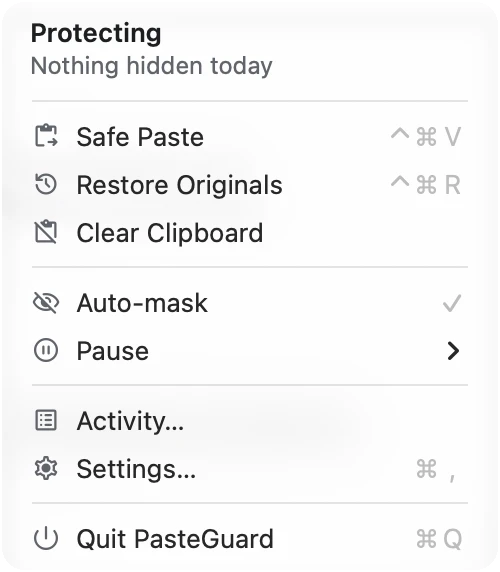
PasteGuard lives in your menu bar, out of the way until you need it. Screenshots from the app itself.

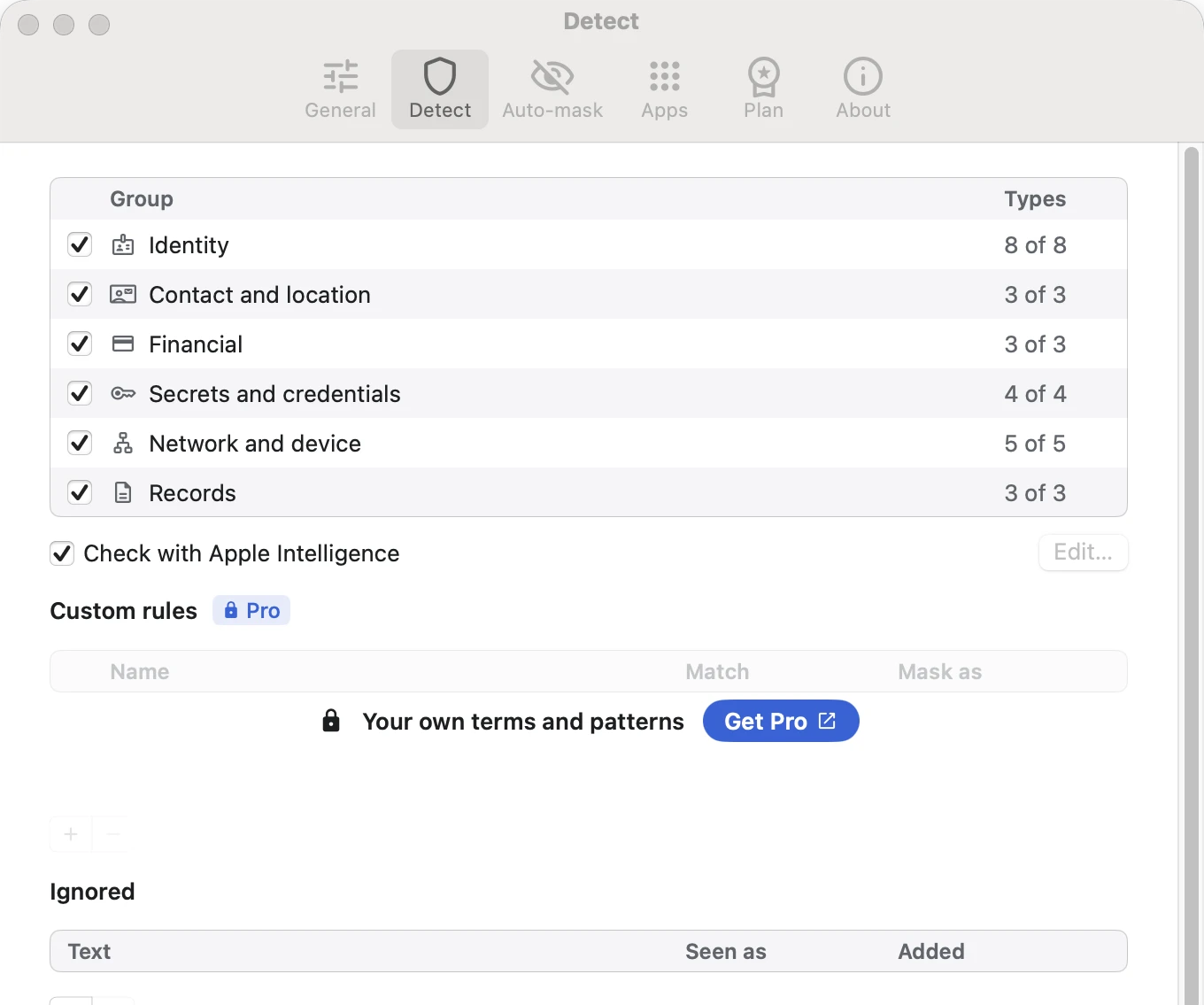
Settings › Detect: six groups (Identity 8 of 8, Contact and location 3 of 3, Financial 3 of 3, Secrets and credentials 4 of 4, Network and device 5 of 5, Records 3 of 3), Check with Apple Intelligence, Custom rules (Pro), Ignored, Imported lists (Pro).
Settings › DetectTurn on the 26 types you care about in 6 groups, add an optional on-device check with Apple Intelligence, keep an Ignore list, and with Pro add your own rules and CSV word lists.
Not just for AI

Wherever you paste.

AI chats get the attention, but a token pasted into a team channel or an email is just as public. Because the clipboard itself holds the masked text, a normal ⌘V pastes the masked text in every app on your Mac.

Team chats

Pasting a log into Slack, Teams or Discord? Tokens, passwords and customer emails are masked before the whole channel sees them.

Email and support replies

Answer a customer or forward a thread without pasting someone's phone number, home address or card number.

Issues, docs and forums

Bug reports in GitHub or Jira, notes in Notion, a question on a forum: share the error, not the API key or database URL.

Screen shares and demos

Pasting into a document while you share your screen? Only masks show up, so nobody on the call reads a secret.

Features

A safety net for your pastes.

PasteGuard lives in the menu bar. It masks what you copy before it can reach an AI tool, a team chat or an email, and keeps the originals on your Mac.

Auto-mask

The moment you copy something private, the clipboard holds a masked copy instead. Private keys and card numbers are removed outright. No Accessibility permission needed.

Last copy

Your three latest copies in the menu, with what was found. Show the original, Ignore it with ⌃⌘I, Change Type, or Mark Sensitive with ⌃⌘M what the rules missed.

Restore originals

Copy the AI's reply and press ⌃⌘R: the real values go back where the tokens were. Originals stay in an encrypted vault on your Mac and expire on their own.

Safe Paste and Smart ⌘V

Prefer to choose? Turn Auto-mask off and paste masked with ⌃⌘V, or let Smart ⌘V check pastes in the apps you pick, like terminals running an AI agent.

Custom rules Pro

Hide what only you know is private: client names, project codenames, ticket or invoice IDs, as words or patterns. See examples

Import CSV Pro

Import a list of customers, companies or secrets from a CSV, up to 1,000 rows, and every one is masked as the type you choose.

EmailsPhone numbersAddressesID and passport numbersCard numbersBank accountsAPI keys and tokensPasswordsPrivate keysDatabase URLsInternal hostsIP and MAC addressesNames after words like “customer” (more with the AI check on macOS 27)
Private by design

Your clipboard stays on your Mac.

A tool that guards your secrets shouldn't send them anywhere. PasteGuard checks everything on your Mac, saves no clipboard history (the menu's last three copies live in memory only), and never reads clipboards your password manager marks as private. Of the app you paste into, it reads only its name, its window title and, in a browser, the website's name.

Pricing

Free for everyday pastes. Pro when you want more.

Everything is free except custom rules and CSV lists. Pro adds those two and is coming soon.

Free

Every paste protected, for good.

$0

No trial, no time limit

  • Auto-mask on every paste
  • All 6 groups, 26 types
  • Last copy, Ignore and Mark As
  • Restore originals ⌃⌘R
  • Apple Intelligence check
Download free

Pro yearly

Your own words, masked too.

$12.99/ year

Or $1.99 a month

  • Everything in Free
  • Custom rules
  • Import CSV, 1,000 rows
Coming soon
Pay once

Pro lifetime

Pay once, keep Pro.

$19.99once

No subscription

  • Everything in Pro
  • Priority support
  • Feature requests
Coming soon

The free download is signed and notarized by Apple. Pro is not on sale yet. Prices are in USD.

FAQ

Questions

Does what I copy leave my Mac?

No. Detection, masking and the optional Apple Intelligence check all run on your Mac. PasteGuard makes no network requests of its own.

Does it work with ChatGPT, Claude or Cursor?

For what you paste, yes: with Auto-mask on, the clipboard already holds the masked text, so ⌘V in ChatGPT, Claude, Cursor, Terminal, Slack or Mail pastes masks. But agents such as Claude Code, Codex or Cursor's agent read .env files and terminal output directly, without the clipboard, and PasteGuard can't see that. Keep secrets out of files your agent can read.

Do I need to give it Accessibility access?

Not for Auto-mask: it only reads and rewrites the clipboard. Accessibility is needed only if you choose Safe Paste to press ⌘V for you or Smart ⌘V to check pastes in chosen apps. Keys are never logged or stored.

Is the free version limited?

No trial, no time limit and no paste limit. Free has every feature except custom rules and CSV lists: Auto-mask, all 6 detection groups, Last copy with Ignore and Mark As, Restore originals and the Apple Intelligence check.

What if I need to paste the real value, like a key into .env?

Under Last copy, choose Show Original to put the real value back on the clipboard for that paste, or Pause protection from the menu for an hour. Private keys and card numbers are removed rather than masked, so use Show Original for those too.

What doesn't it catch?

PasteGuard only sees text on the clipboard. It doesn't see files an AI agent reads itself, text in images, drag and drop, or what you type. People's names are found only after words like “customer” or “contact” unless the Apple Intelligence check (macOS 27) is on. Detection is pattern-based and can miss things, so treat it as a safety net, not a guarantee.

Something was masked by mistake. What now?

Open the menu: under Last copy, choose Show Original to get it back now, or Ignore (⌃⌘I) so that text is never flagged again. Ignored text is listed in Settings › Detect.

Something private wasn't caught?

Choose Mark Sensitive (⌃⌘M) or Mark As under Last copy, and that value is masked from then on. With Pro, add custom rules or import a CSV list.

What happens to formatting?

A masked copy is plain text, so bold and links in it are dropped. Copies with nothing private are left exactly as they were.

Can I get the real values back?

Yes, on every plan. Copy the AI's reply and press ⌃⌘R. Originals are kept in an encrypted vault on your Mac for 1 hour, 24 hours or 7 days.

Where do I get it?

Download it free from this page: the app is signed and notarized by Apple. Pro is coming soon.

Keep your secrets out of every paste.

Free, signed and notarized by Apple. macOS 14 or later.